> ## Documentation Index
> Fetch the complete documentation index at: https://docs.hypersender.com/llms.txt
> Use this file to discover all available pages before exploring further.
# Quick Start (SMS API)
> This guide will help you get started with Hypersender SMS API and send your first message.
## How To Starts
To get started, you need to create an account on Hypersender. Visit [Hypersender](https://app.hypersender.com/login) and click on the Sign Up button.
After you have successfully created an account, you need to create an instance. An instance represents a one phone number and the app on your android phone. You can create multiple instances for different phone numbers.
1. Click on the **Create Instance** button.
2. Select Service Type: **WhatsApp**
3. Enter a name for your instance.
4. Enter your phone number. i.e. `+2011313311331`, make sure it's a working number and you have access to it.
5. Enter a description for your instance **(Optional)**.
After you have created an instance successfully, you will be redirected to the instance listing page. You'll immediately see a notification to copy your API key. Click on the **Copy** button to copy the API key to your clipboard.
Copy `instanceId` and `apiKey`, you will need them to authenticate your requests.
Currently, Google Play Store does not allow SMS apps to be published. So you need to download the app from the Hypersender website.
1. Visit the Github release page: [Hypersender SMS App](https://github.com/hypersender/sms-app-releases/releases).
2. Click on the Download App button.
3. Scan the QR code using your phone to download the app.
### Required App Permissions
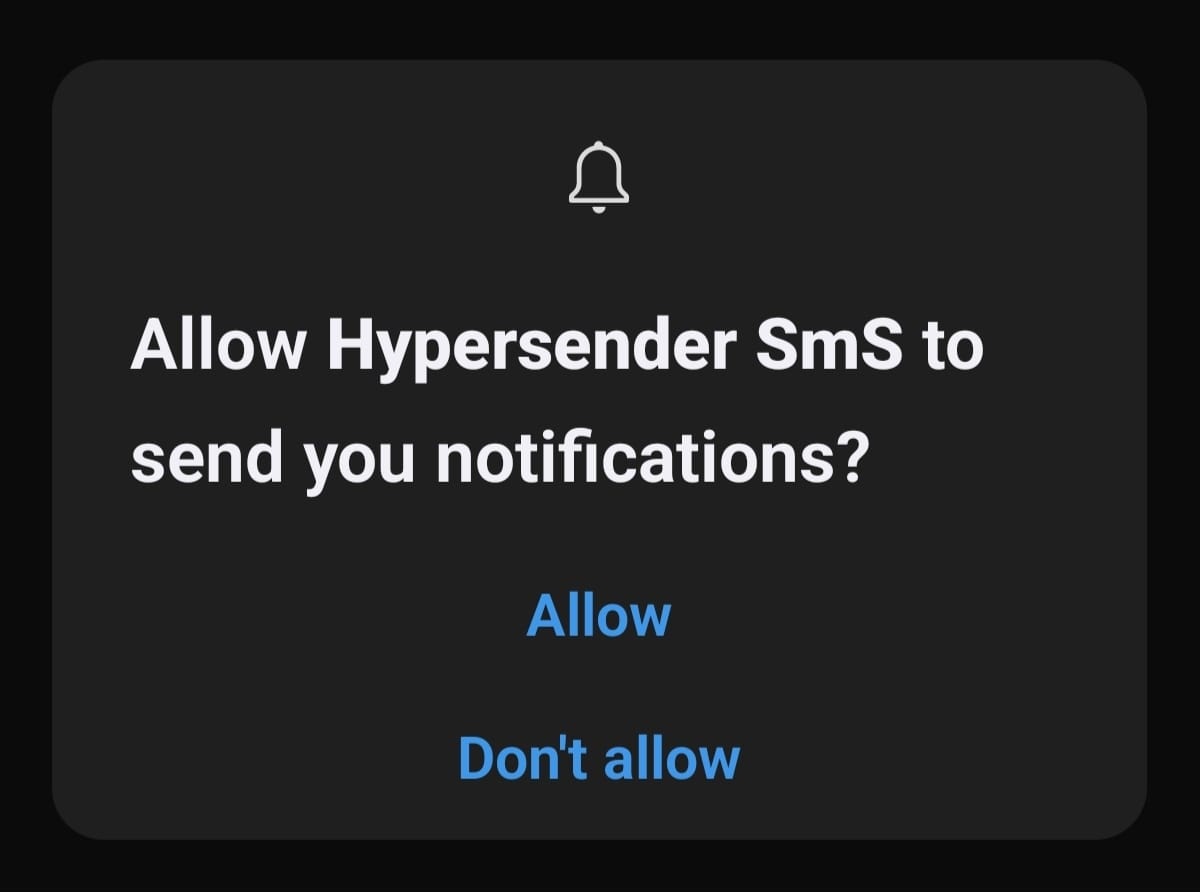
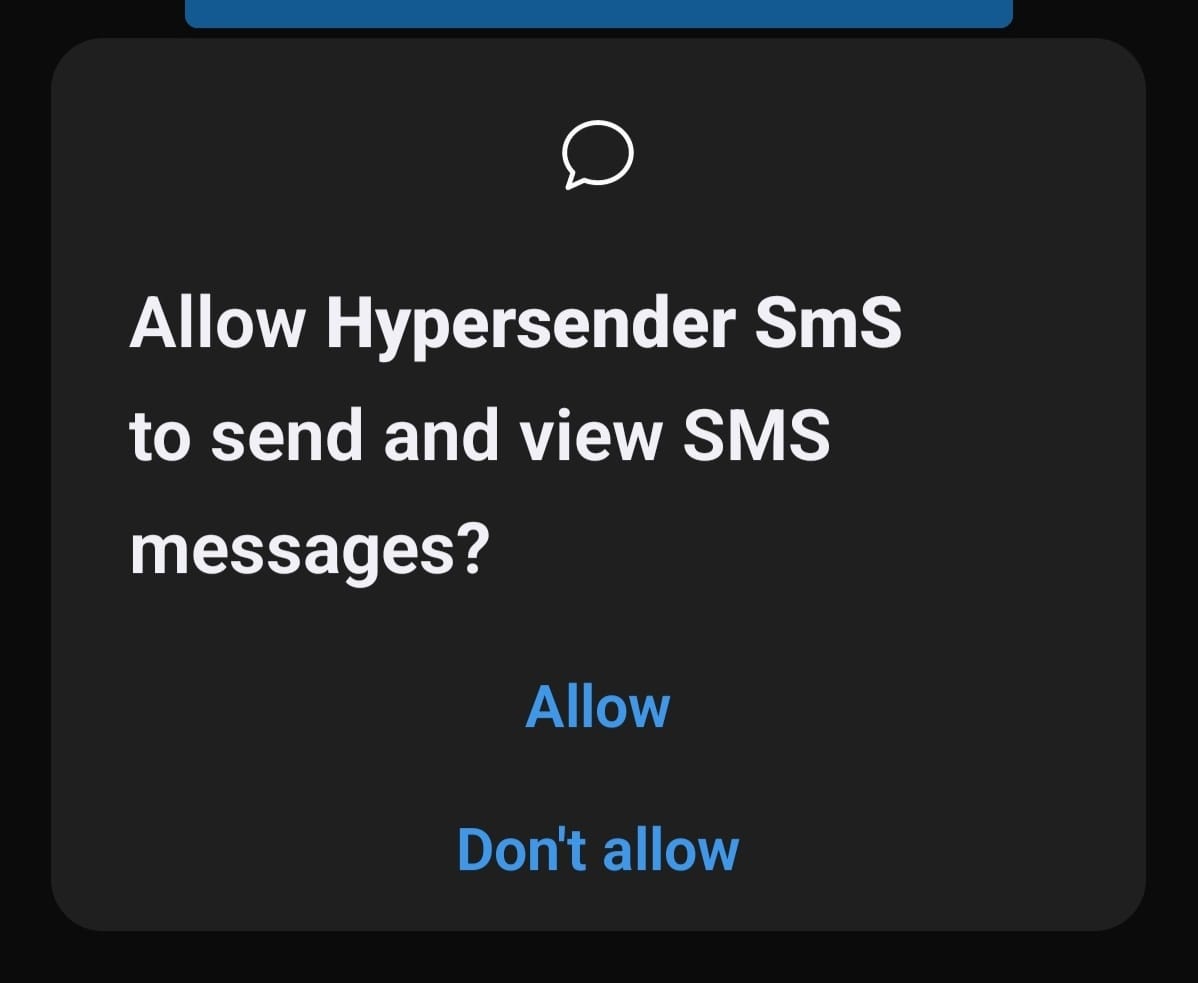
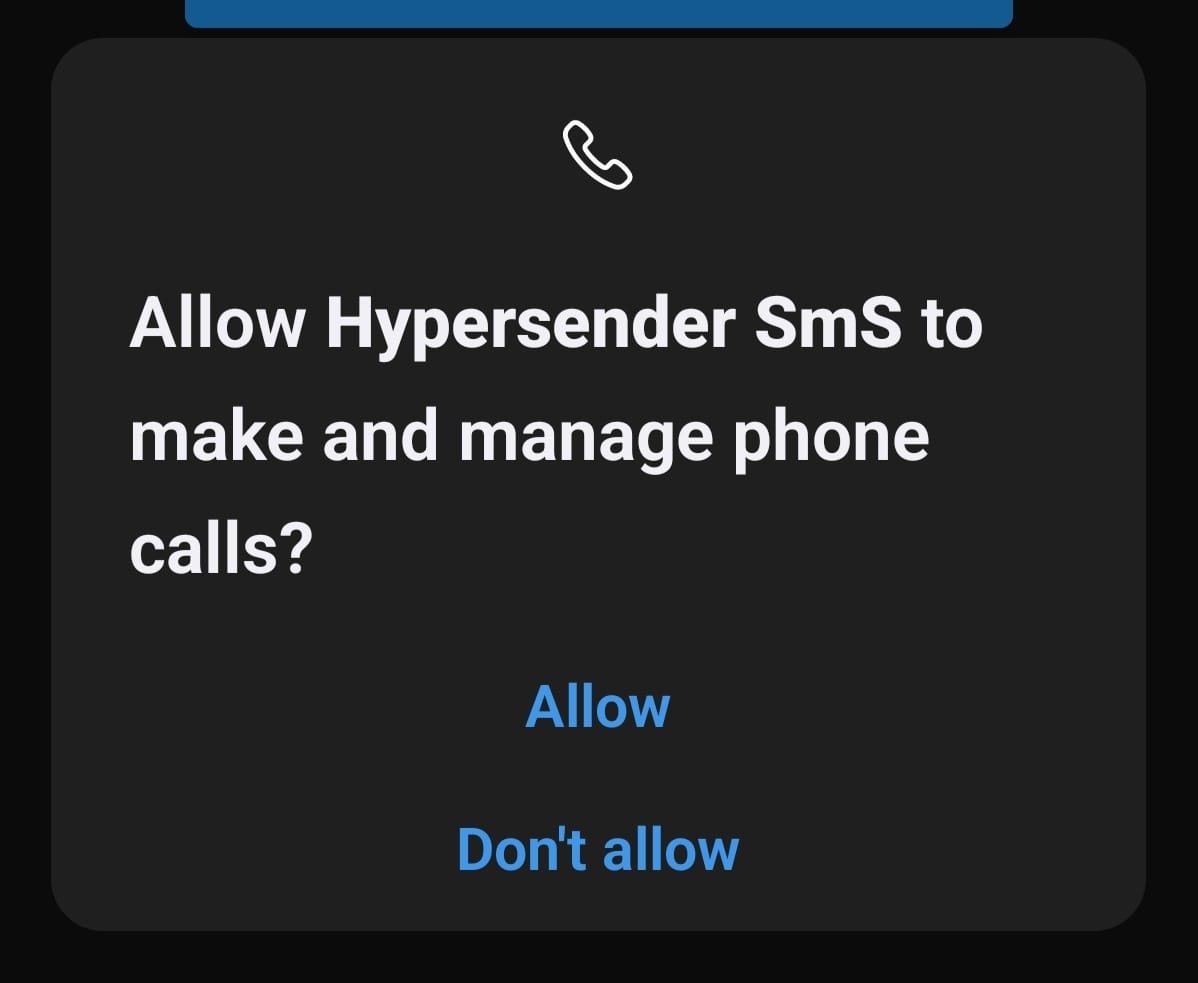
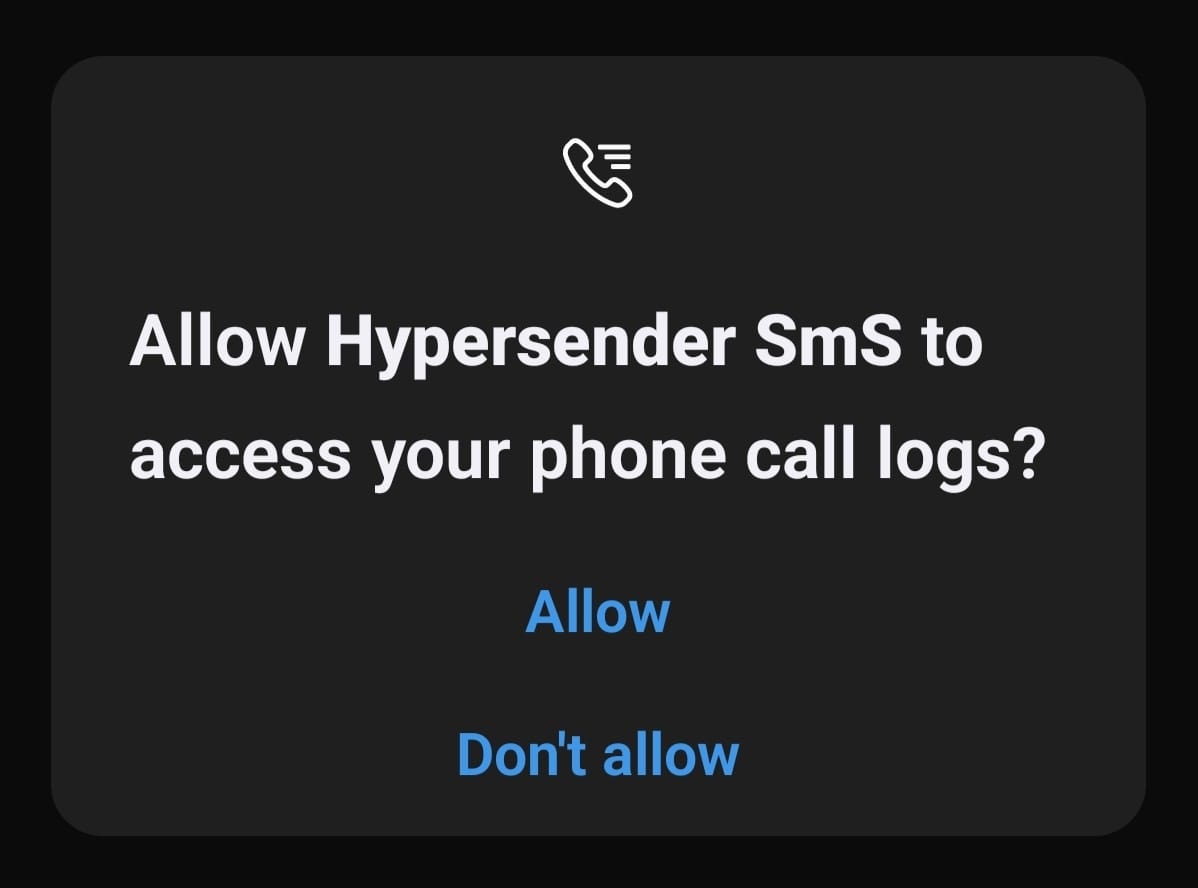
In order for Hypersender to work properly, you need to grant the following permissions to the app:
This permission is required for Hypersender to send notifications to your phone.
 This permission is required for Hypersender to send and view messages on your phone.
 This permission is required for Hypersender to make and manage phone calls on your phone.
 This permission is required for Hypersender to access and view your phone logs.
 ### Battery Optimization
Hypersender needs to work continuously in the background to send, receive, view, and manage messages, so it's important to disable battery optimization for the app.
Hypersender will asks you to disable battery optimization when you first open it. Click on the **Ignore Battery Optimization** button to disable battery optimization for the app.
### Battery Optimization
Hypersender needs to work continuously in the background to send, receive, view, and manage messages, so it's important to disable battery optimization for the app.
Hypersender will asks you to disable battery optimization when you first open it. Click on the **Ignore Battery Optimization** button to disable battery optimization for the app.
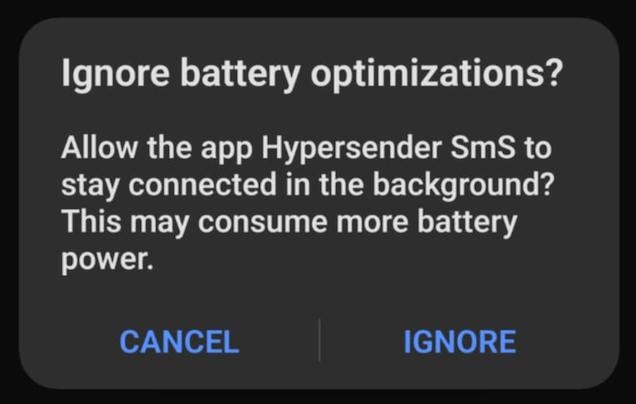 If for some reason you missed the battery optimization prompt, you can disable battery optimization manually by following these steps:
1. Open **Settings** on your phone.
2. Search for **Battery Optimization**.
3. Search for **Hypersender SMS** and disable battery optimization for the app.
You'll notice that connection status is **Disconnected**. To connect your SMS app, you need to enter the API key you copied earlier in the app.
After you have successfully connected your SMS app, you should see the connection status as **Connected**. Now you can send your first message.
## Quick Demo
Learn how to use Hypersender SMS API to send a message using Postman: [Demo Link](https://docs.hypersender.com/api-reference/sms/how-to-send-sms-message-in-postman).
## postman collection
You can download SMS API Postman Collection to easily interact with our API.
Download SMS API Postman Collection.
If for some reason you missed the battery optimization prompt, you can disable battery optimization manually by following these steps:
1. Open **Settings** on your phone.
2. Search for **Battery Optimization**.
3. Search for **Hypersender SMS** and disable battery optimization for the app.
You'll notice that connection status is **Disconnected**. To connect your SMS app, you need to enter the API key you copied earlier in the app.
After you have successfully connected your SMS app, you should see the connection status as **Connected**. Now you can send your first message.
## Quick Demo
Learn how to use Hypersender SMS API to send a message using Postman: [Demo Link](https://docs.hypersender.com/api-reference/sms/how-to-send-sms-message-in-postman).
## postman collection
You can download SMS API Postman Collection to easily interact with our API.
Download SMS API Postman Collection.