> ## Documentation Index
> Fetch the complete documentation index at: https://docs.hypersender.com/llms.txt
> Use this file to discover all available pages before exploring further.
# Installation
> Step-by-step guide for installing and configuring the Hypersender PHP SDK in your Laravel application.
# Getting Started with Hypersender SDK
This guide will walk you through the process of installing and configuring the Hypersender PHP SDK for your Laravel application.
## Prerequisites
Before you begin, ensure you have the following:
* **PHP ^8.2 or higher:** The SDK requires PHP version 8.2 or higher to function properly.
* **Composer:** For package management and dependency resolution
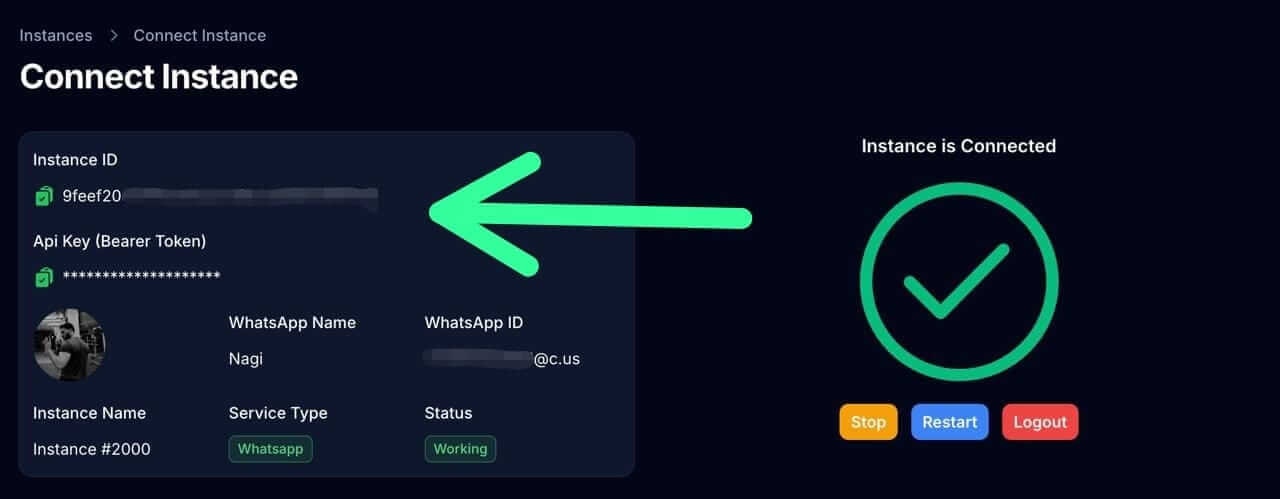
* **Hypersender account:** Sign up at [Hypersender](https://app.hypersender.com) to obtain your API key and Instance ID.
You can find your API key and Instance ID in the Hypersender dashboard
 ## Installation
Run the following command in your terminal to install the Hypersender PHP SDK:
```bash theme={null}
composer require hypersender/hypersender-laravel
```
After installation, you can verify the package is listed in your `composer.json` file.
Publish the configuration file using the following Artisan command:
```bash theme={null}
php artisan vendor:publish --tag=hypersender-config
```
This will create a `hypersender-config.php` configuration file in your `config` directory.
Open the `hypersender-config.php` configuration file, you'll find different options to set up the SDK to work with Whatsapp API, SMS API or both.
**`For WhatsApp API, set the following environment variables in your .env file:`**
```bash theme={null}
# API key from Hypersender dashboard
HYPERSENDER_WHATSAPP_API_KEY=
# Instance ID from Hypersender dashboard
HYPERSENDER_WHATSAPP_INSTANCE_ID=
# Webhook header authorization secret
HYPERSENDER_WHATSAPP_WEBHOOK_AUTHORIZATION_SECRET=
# Webhook route to receive incoming messages and status updates
HYPERSENDER_WHATSAPP_WEBHOOK_ROUTE=
# Job class to handle incoming webhook requests
# (use the default or create your own)
HYPERSENDER_WHATSAPP_WEBHOOK_JOB=
# The default queue for processing WhatsApp jobs
HYPERSENDER_WHATSAPP_QUEUE=default
```
Learn how to get the Hypersender whatsapp `API token` and `Instance ID` from Dashboard: [Demo Link](https://docs.hypersender.com/api-reference/whatsapp/how-to-send-whatsapp-message-in-postman).
**`For SMS API, set the following environment variables in your .env file:`**
```bash theme={null}
# API key from Hypersender dashboard
HYPERSENDER_SMS_API_KEY=
# Instance ID from Hypersender dashboard
HYPERSENDER_SMS_INSTANCE_ID=
# Webhook header authorization secret
HYPERSENDER_SMS_WEBHOOK_AUTHORIZATION_SECRET=
# Webhook route to receive incoming messages and status updates
HYPERSENDER_SMS_WEBHOOK_ROUTE=
# Job class to handle incoming webhook requests
# (use the default or create your own)
HYPERSENDER_SMS_WEBHOOK_JOB=
# The default queue for processing SMS jobs
HYPERSENDER_SMS_QUEUE=default
```
Learn how to get the Hypersender sms `API token` and `Instance ID` from Dashboard: [Demo Link](https://docs.hypersender.com/api-reference/sms/how-to-send-sms-message-in-postman).
**`For OTP API, set the following environment variables in your .env file:`**
```bash theme={null}
# Base URL for OTP API (keep default unless directed otherwise)
HYPERSENDER_OTP_BASE_URL=https://app.hypersender.com/api/otp/v2
# API key from Hypersender dashboard
HYPERSENDER_OTP_API_KEY=
# Instance ID from Hypersender dashboard
HYPERSENDER_OTP_INSTANCE_ID=
```
## You're all set!
You have successfully installed and configured the Hypersender PHP SDK in your Laravel application. You can now start using the SDK to send messages and manage your communications, check out the Usage Guide to learn more about how to use the SDK effectively.
* **WhatsApp:** [Usage Guide](/packages-and-sdks/laravel/whatsapp/send-messages)
* **SMS:** [Usage Guide](/packages-and-sdks/laravel/sms/send-messages)
## Installation
Run the following command in your terminal to install the Hypersender PHP SDK:
```bash theme={null}
composer require hypersender/hypersender-laravel
```
After installation, you can verify the package is listed in your `composer.json` file.
Publish the configuration file using the following Artisan command:
```bash theme={null}
php artisan vendor:publish --tag=hypersender-config
```
This will create a `hypersender-config.php` configuration file in your `config` directory.
Open the `hypersender-config.php` configuration file, you'll find different options to set up the SDK to work with Whatsapp API, SMS API or both.
**`For WhatsApp API, set the following environment variables in your .env file:`**
```bash theme={null}
# API key from Hypersender dashboard
HYPERSENDER_WHATSAPP_API_KEY=
# Instance ID from Hypersender dashboard
HYPERSENDER_WHATSAPP_INSTANCE_ID=
# Webhook header authorization secret
HYPERSENDER_WHATSAPP_WEBHOOK_AUTHORIZATION_SECRET=
# Webhook route to receive incoming messages and status updates
HYPERSENDER_WHATSAPP_WEBHOOK_ROUTE=
# Job class to handle incoming webhook requests
# (use the default or create your own)
HYPERSENDER_WHATSAPP_WEBHOOK_JOB=
# The default queue for processing WhatsApp jobs
HYPERSENDER_WHATSAPP_QUEUE=default
```
Learn how to get the Hypersender whatsapp `API token` and `Instance ID` from Dashboard: [Demo Link](https://docs.hypersender.com/api-reference/whatsapp/how-to-send-whatsapp-message-in-postman).
**`For SMS API, set the following environment variables in your .env file:`**
```bash theme={null}
# API key from Hypersender dashboard
HYPERSENDER_SMS_API_KEY=
# Instance ID from Hypersender dashboard
HYPERSENDER_SMS_INSTANCE_ID=
# Webhook header authorization secret
HYPERSENDER_SMS_WEBHOOK_AUTHORIZATION_SECRET=
# Webhook route to receive incoming messages and status updates
HYPERSENDER_SMS_WEBHOOK_ROUTE=
# Job class to handle incoming webhook requests
# (use the default or create your own)
HYPERSENDER_SMS_WEBHOOK_JOB=
# The default queue for processing SMS jobs
HYPERSENDER_SMS_QUEUE=default
```
Learn how to get the Hypersender sms `API token` and `Instance ID` from Dashboard: [Demo Link](https://docs.hypersender.com/api-reference/sms/how-to-send-sms-message-in-postman).
**`For OTP API, set the following environment variables in your .env file:`**
```bash theme={null}
# Base URL for OTP API (keep default unless directed otherwise)
HYPERSENDER_OTP_BASE_URL=https://app.hypersender.com/api/otp/v2
# API key from Hypersender dashboard
HYPERSENDER_OTP_API_KEY=
# Instance ID from Hypersender dashboard
HYPERSENDER_OTP_INSTANCE_ID=
```
## You're all set!
You have successfully installed and configured the Hypersender PHP SDK in your Laravel application. You can now start using the SDK to send messages and manage your communications, check out the Usage Guide to learn more about how to use the SDK effectively.
* **WhatsApp:** [Usage Guide](/packages-and-sdks/laravel/whatsapp/send-messages)
* **SMS:** [Usage Guide](/packages-and-sdks/laravel/sms/send-messages)