

 MCP
The screenshots are from a Xiaomi phone on Android 16. Menu names differ a little between brands and Android versions. The names on your phone appear in the Hypersender app itself, under Settings → Privacy & Security.
1. Turn off unused-app restrictions
If an app isn’t opened for a few months, Android can remove its permissions and stop it from running. For a gateway app, that means messages stop without warning.1
Open the setting from Hypersender
During setup, the Keep Hypersender running card tells you whether the switch is on. Tap Open settings. You can also open it later from Settings → Unused App Restrictions in the app.
2
Turn the switch off
On the App info screen, turn off the switch. Its name depends on your phone: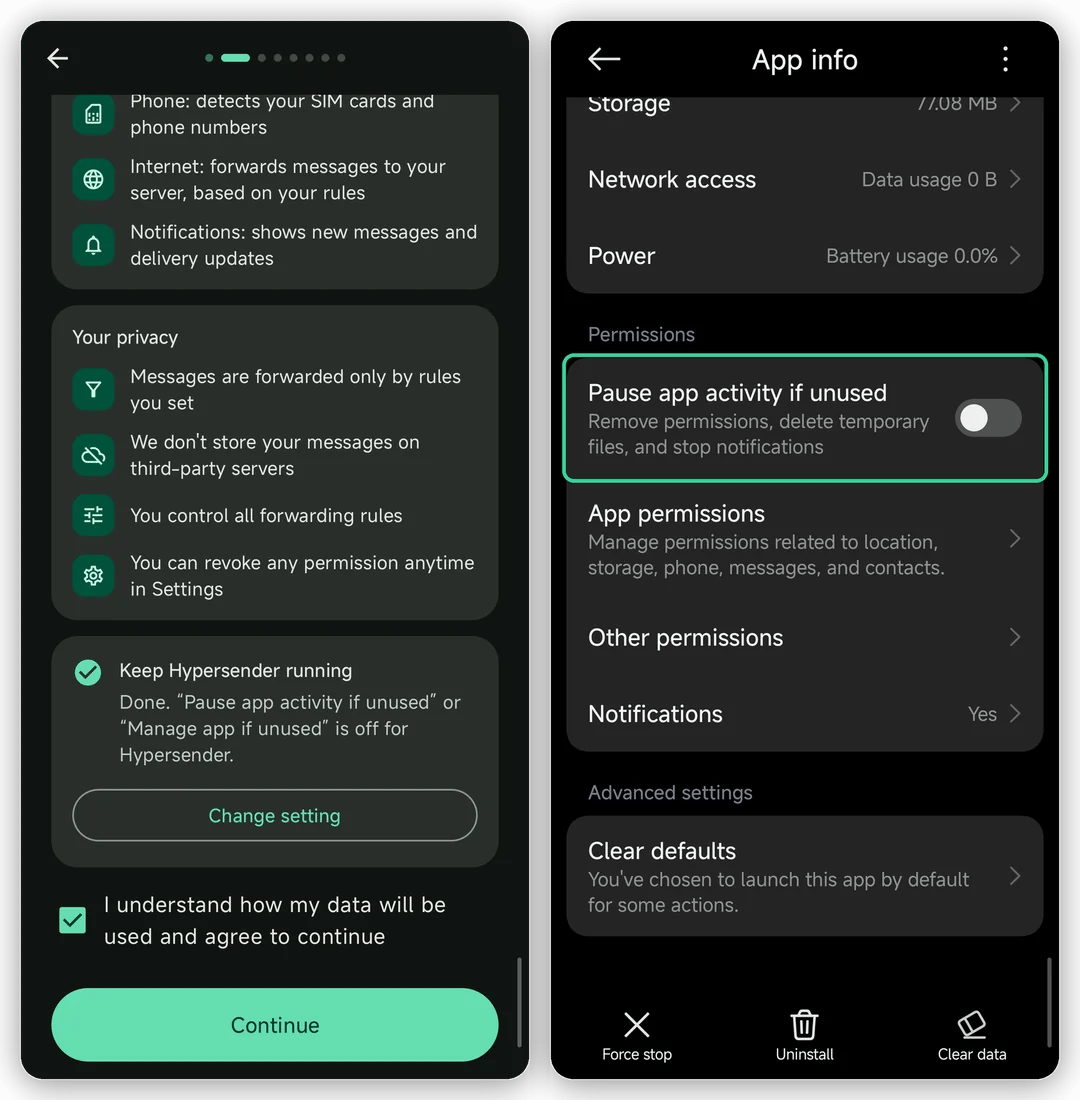
When you return to the app, the card shows Done.
2. Remove battery limits
Battery savers close background apps to save power. Hypersender needs to stay ready to send a message at any moment, so give it no restrictions.1
Open the battery settings for Hypersender
Open the phone’s Settings → Apps → Hypersender SMS, then tap Power or Battery. You can also tap Settings → Battery Optimization in the Hypersender app and pick Hypersender SMS from the list.
2
Choose No restrictions
Select No restrictions (on some phones: Unrestricted or Don’t optimize).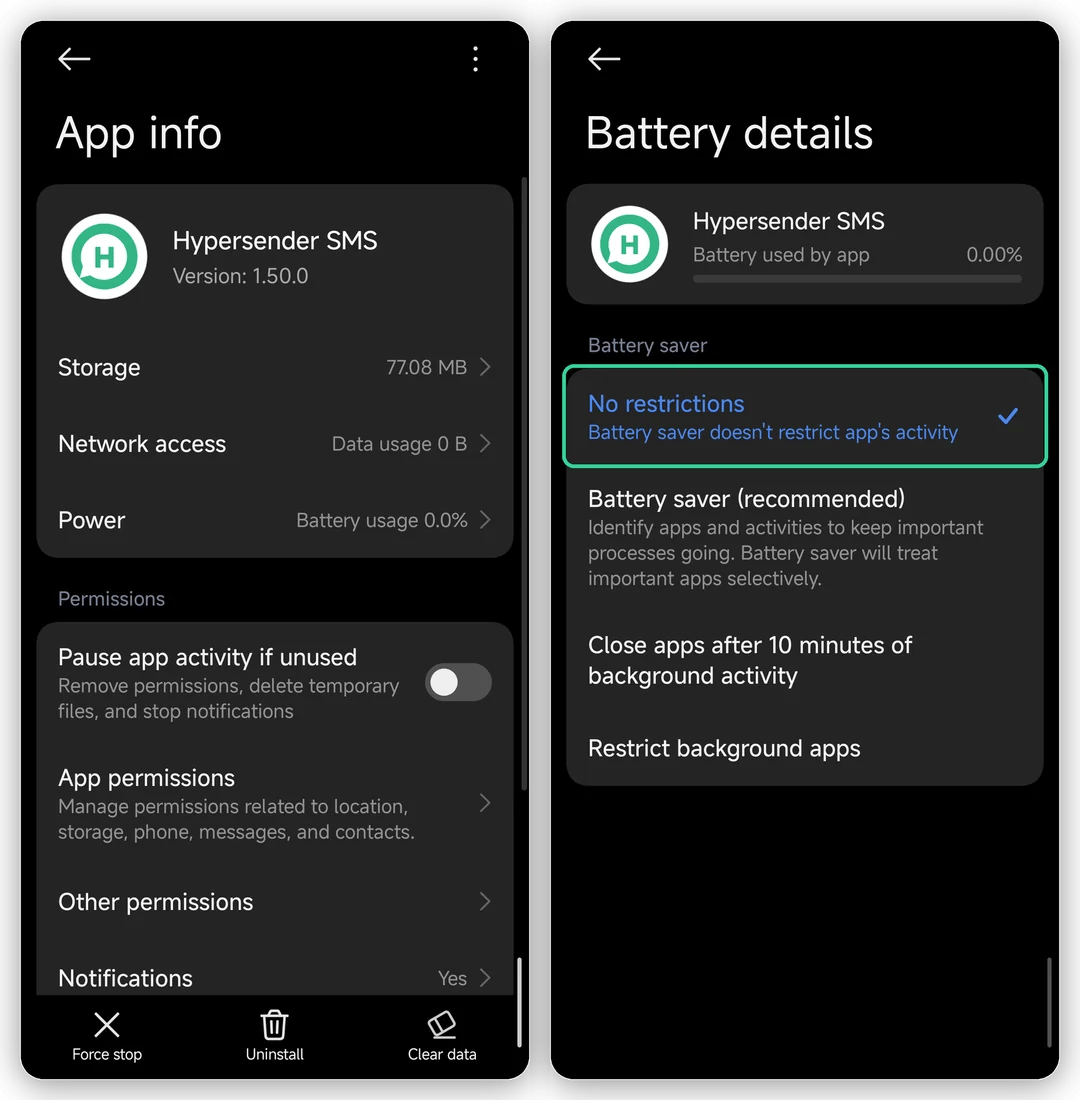
3. Check the app permissions
Hypersender asks for its permissions during setup. If one was skipped or removed later, open Settings → App Permissions in the app (or the phone’s App info screen) and check that these are allowed: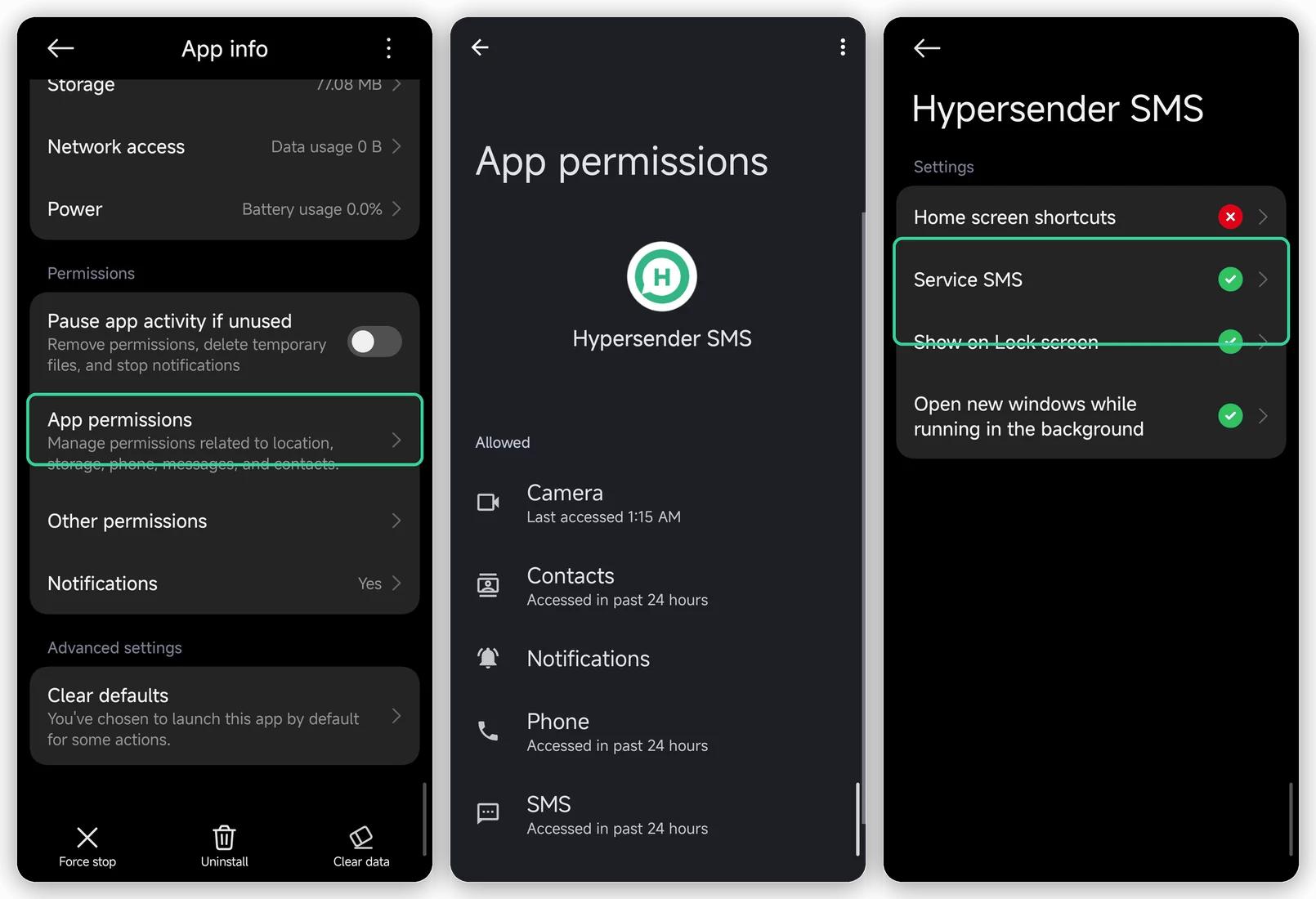
Check that everything works
Open the Hypersender tab in the app:- The service switch at the top shows Active.
- Each SIM you use shows Linked to and Receiving enabled.
- Heartbeat shows a recent time. Tap Send to check the connection right away.
phone.heartbeat.offline webhook. See the SMS heartbeats guide.