

 MCP
Rules need Hypersender SMS 1.50 or newer. In the Arabic version of the app, rules are called الفلاتر.
The Rules tab
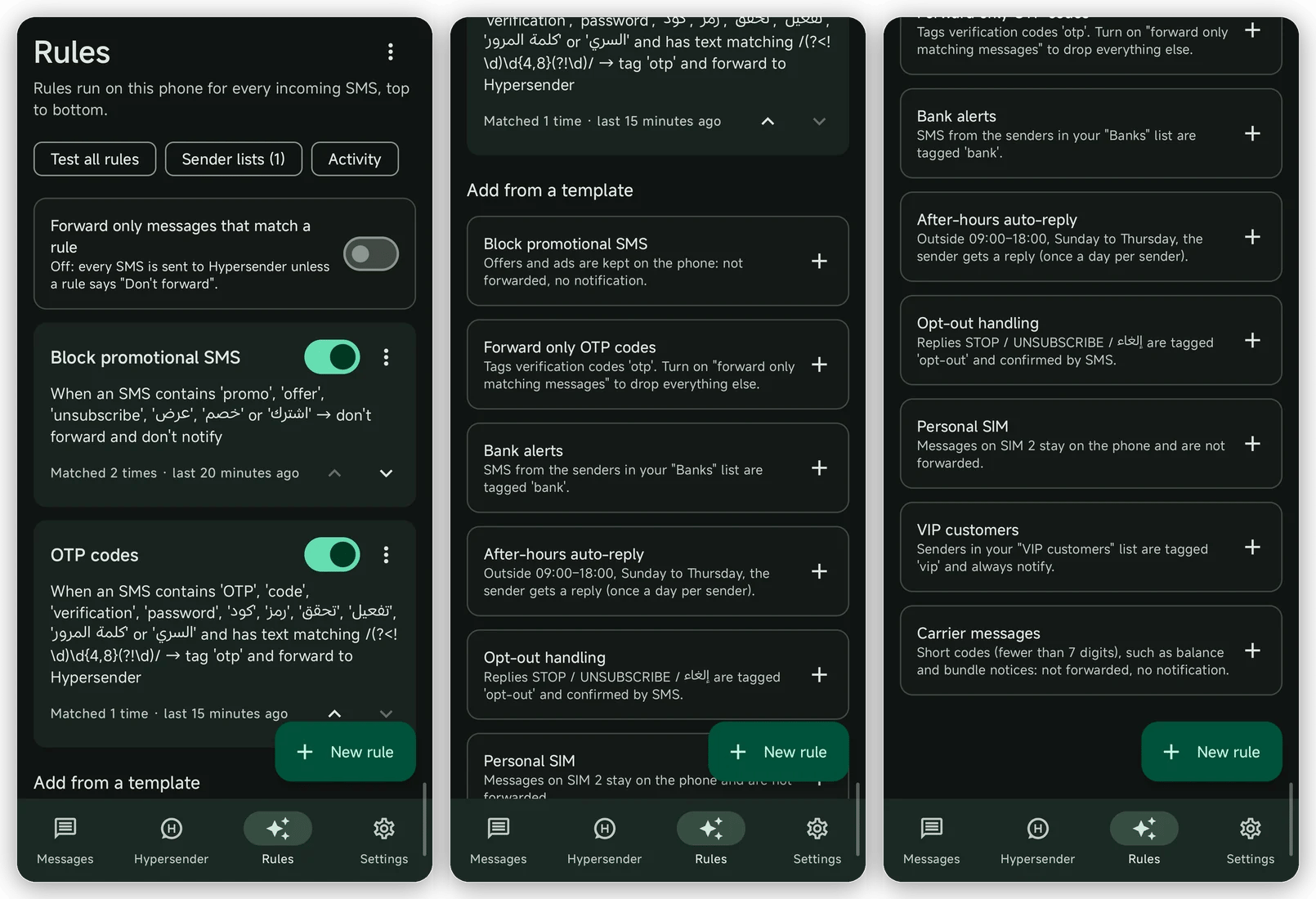
Open the Rules tab in the app. The top of the screen has three buttons:- Test all rules runs a sample message through every rule.
- Sender lists holds lists of numbers or sender names that rules can use.
- Activity shows the last 100 messages that matched a rule.
Forward only messages that match a rule
This switch sets what happens when no rule makes a decision:- Off (default): every SMS is forwarded to Hypersender, unless a rule says Don’t forward.
- On: an SMS is forwarded only when a rule says Forward to Hypersender. Everything else stays on the phone.
How a rule is built
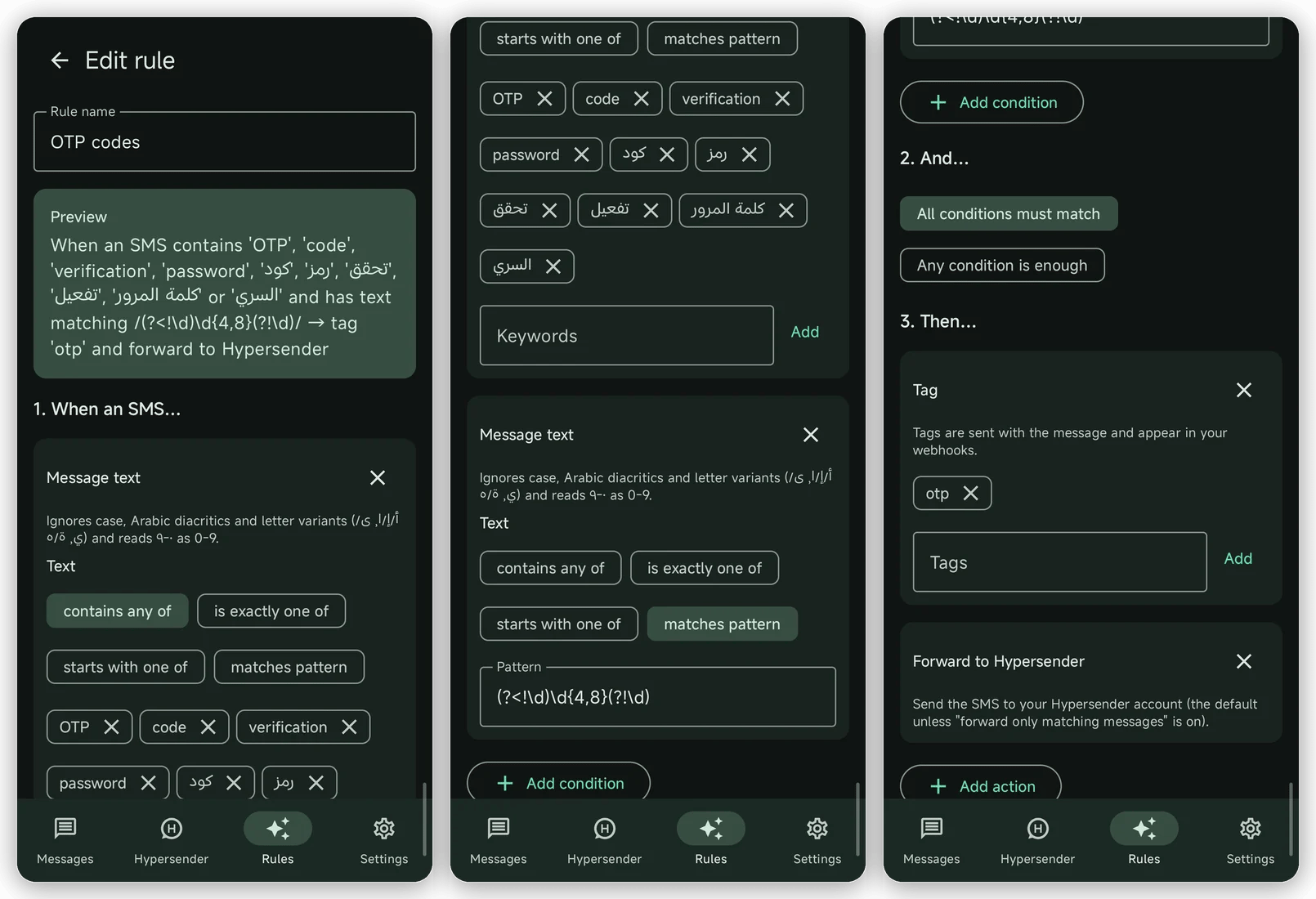
Tap a rule to edit it, or tap New rule. The editor has four parts:- Rule name. Shown in the list and the activity log.
- Preview. The rule as a sentence, updated as you edit.
- When an SMS… One or more conditions, and whether All conditions must match or Any condition is enough.
- Then… One or more actions.
Conditions
Actions
How rules combine
Rules run from top to bottom, in the order shown in the list. Use the arrows on each rule to change the order.- Forwarding and notifications: the first matching rule that decides wins. Later rules can’t change it.
- Tags: tags from every matching rule are added together, without duplicates.
- Auto-reply: the first matching rule with an auto-reply sends it.
- Stop here: rules below are skipped for that message.
- No decision: the message is forwarded and notified, unless forward-only-matching is on.
Templates
Templates are ready-made rules. Tap + next to one to add it, then tap the new rule to change it.Test before saving
Test this rule at the bottom of the editor takes a sender, a message, a SIM, a time, and the day. It shows whether the rule matches, which conditions passed or failed, and the result: forwarded or not, notification or not, tags, and any auto-reply. Test all rules does the same for the whole list, so you see how your rules work together. Tests never send anything.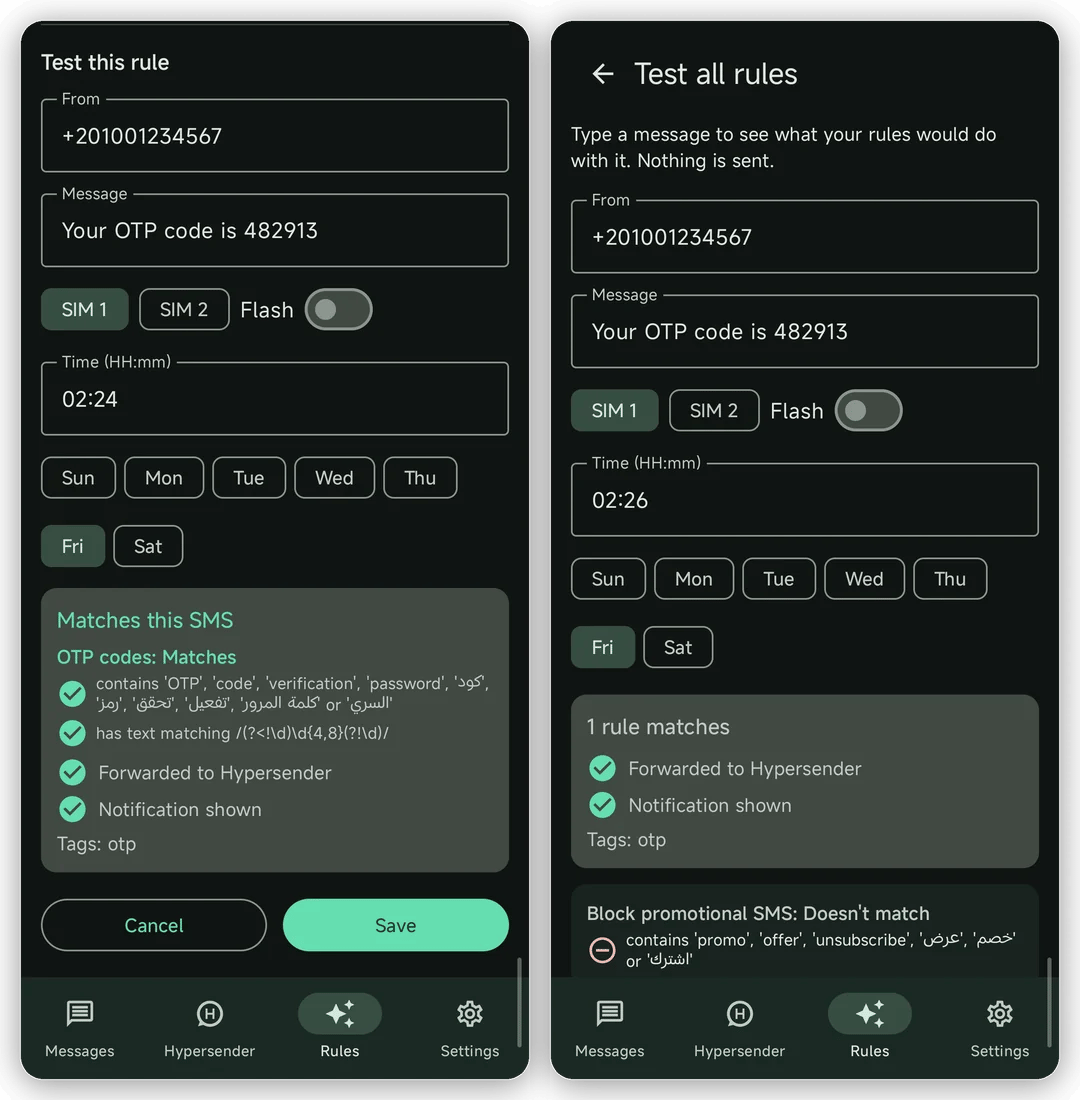
Activity and sender lists
Activity lists the last 100 matches: when the message arrived, on which SIM, which rule matched, and what happened. It is stored on the phone only. Tap Clear to empty it. Sender lists are named lists of numbers or sender names, one per line. Use them in the Sender list condition. You can type entries or add them from your contacts. A rule that uses a deleted list stops matching until you choose another one.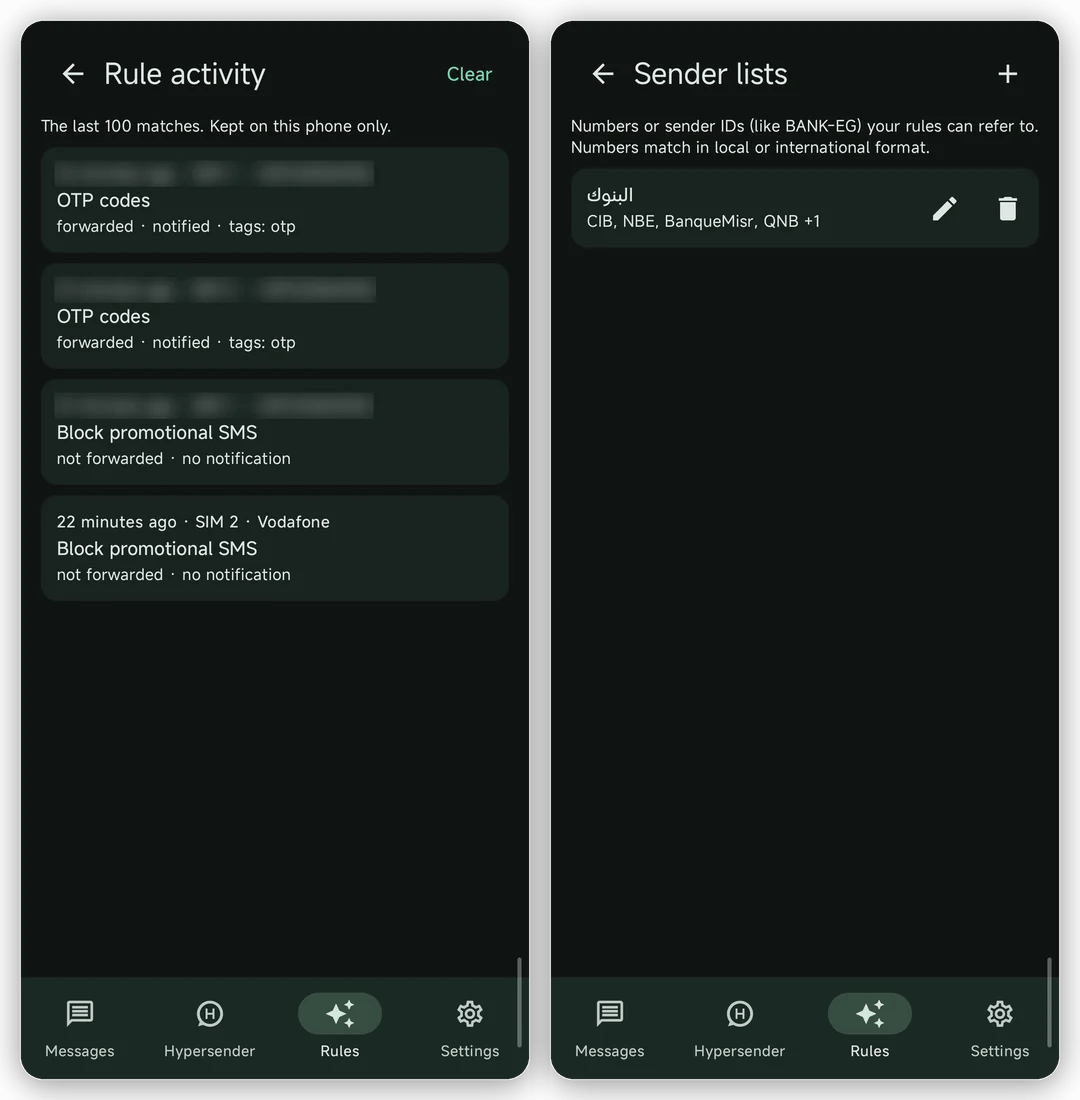
Auto-replies
An auto-reply sends an SMS back to the sender when the rule matches.- The reply goes out from the same SIM that received the message.
- It is never sent to short codes or sender names, so you won’t reply to your bank or carrier by mistake.
- Each sender gets at most one reply per rule within the cooldown you set, from 1 hour to 30 days. The default is 24 hours.
- A failed reply is not retried, so a sender never gets the same reply twice.
- The reply can be up to 480 characters and can include
{sender},{time}, and{sim}.
Tags in webhooks
Tags added by rules are sent with the message in themessage.phone.received webhook, together with the SIM the message arrived on:
tagsis always a list. Messages without tags send[].- Tags are lowercase. A message keeps up to 10 tags, and each tag is up to 40 characters in the app.
simisSIM1orSIM2.- Tags also appear on received messages returned by the messages API.
Import and export
Open the menu (⋮) on the Rules tab:- Export rules saves your rules and sender lists to a file.
- Share rules sends the file through any app.
- Import rules adds rules from a file below your current ones. Nothing is replaced.
Examples
Send only verification codes to the server
Send only verification codes to the server
- Add the Forward only OTP codes template and accept the offer to turn on Forward only messages that match a rule.
- Add your own words to the keyword list if your services use other wording.
- In your webhook, handle messages tagged
otp.
Keep a personal SIM private on a dual-SIM phone
Keep a personal SIM private on a dual-SIM phone
Add the Personal SIM template. Messages on SIM 2 stay on the phone. To use SIM 1 as the personal one, edit the rule and change the SIM condition.
Route support replies by customer tier
Route support replies by customer tier
- Create a sender list called VIP customers with your key customers’ numbers.
- Add the VIP customers template and move it to the top.
- In your backend, send messages tagged
vipto a priority queue.
Answer customers after working hours
Answer customers after working hours
Add the After-hours auto-reply template, then change the window, the days, and the reply text. Use
{sender} in the text to include the customer’s number.