

 MCP
Getting Started with Hypersender SDK
This guide will walk you through the process of installing and configuring the Hypersender Go SDK for your Golang application, whether it is anet/http service, a Gin or Echo app, or a simple command-line tool.
Prerequisites
Before you begin, ensure you have the following:- Go 1.24 or higher: The SDK uses only the Go standard library, with no third-party dependencies.
- Go modules: For package management and dependency resolution
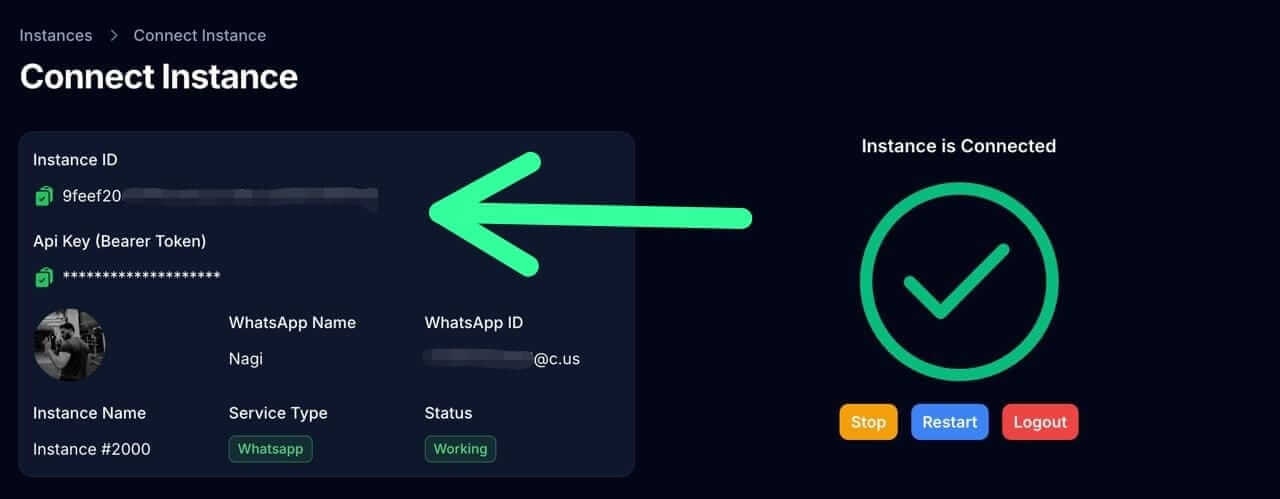
- Hypersender account: Sign up at Hypersender to obtain your API key and Instance ID.
Installation
1
Install the SDK with go get
Run the following command in your module’s directory to install the Hypersender Go SDK:
2
Configure Environment Variables
The SDK reads its credentials from environment variables, using the same names as the Laravel package. Set the variables for the APIs you use: WhatsApp, SMS, OTP, or any mix of them.
For WhatsApp API, set the following environment variables in your .env file:For SMS API, set the following environment variables in your .env file:For OTP API, set the following environment variables in your .env file:For Enterprise instance management (Enterprise accounts only), set:Go does not read
.env files on its own. Export the variables in your shell or hosting platform, or install a package such as godotenv (go get github.com/joho/godotenv) and load the file before you create the client.3
Send your first message
Import
github.com/hypersender/hypersender-go, create a client, and call the API you need. The client picks up the environment variables when you create it.Reading responses and errors
Every method takes acontext.Context first, then its required arguments, then an optional options struct (pass nil when you don’t need it). It returns the API’s JSON as a hypersender.Result, which is a map[string]any, so the fields keep the API’s names. Nested objects are map[string]any too, and lists are []any, so read them with type assertions:
4XX or 5XX status, the method returns a *hypersender.Error with the StatusCode, Message, and raw Body of the response. Check for it with errors.As:
Configure in code instead of environment variables
If you can’t use environment variables, pass the credentials when you create the client:hypersender.WithEnterprise(apiKey) for the Enterprise API key and hypersender.WithHTTPClient(httpClient) to use your own *http.Client (the default has a 30 second timeout).
The client is safe for concurrent use, so create it once and share it. To work with more than one account at the same time, create a hypersender.NewClient(...) client for each one. Each client has the same WhatsApp, SMS, OTP, and Enterprise fields.
You’re all set!
You have successfully installed and configured the Hypersender Go SDK in your application. You can now start using the SDK to send messages and manage your communications.- WhatsApp: Usage Guide
- WhatsApp webhooks: Receive WhatsApp webhooks in Go
- SMS: Usage Guide
- OTP codes (WhatsApp or SMS): OTP with Go
- WhatsApp OTP links: Generate a link with Go